
Save Unlimited Carts and Plan Orders More Efficiently

You can now save your shopping carts and create as many as you need, making it easier to plan orders, organize products, and reorder quickly.
How to Create and Save a Cart
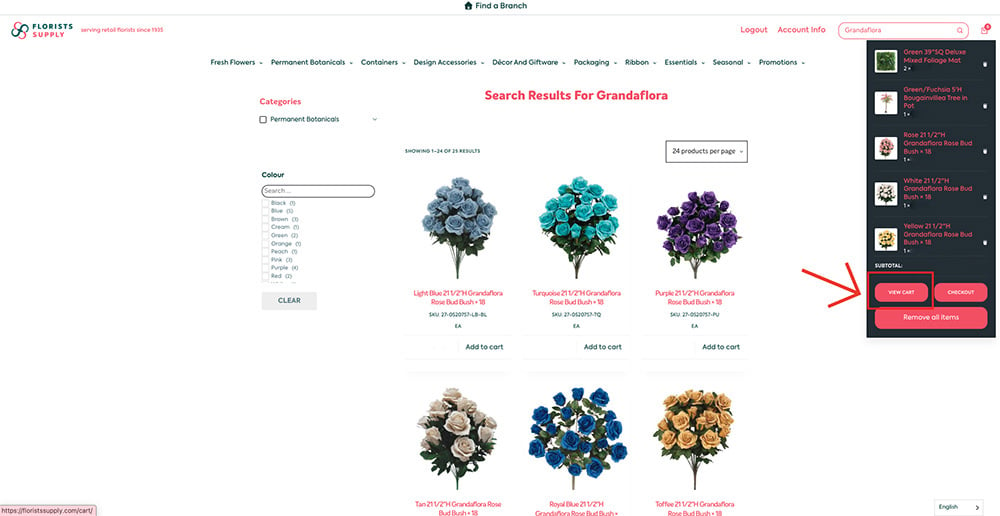
Step 1: Add Products and View Your Cart
After adding products, click the shopping bag icon in the top-right corner and select “View Cart.” In this example we added Grandaflora Rose Bushes, Deluxe Mixed Foliage Mat, and our Bougainvillea Tree in Pot
Step 2: Save Your Cart
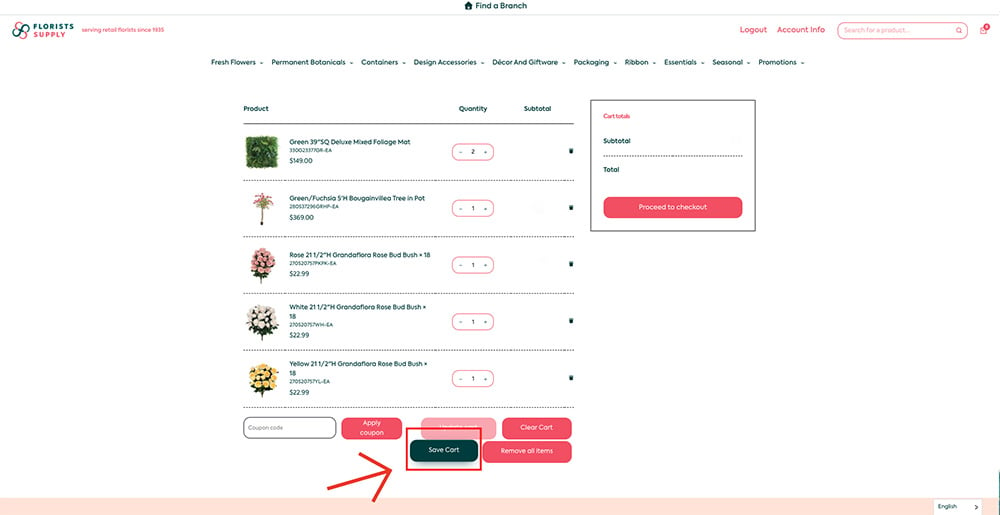
You will be taken to your Checkout Cart page. Here, you can review all items in your cart.
To save your cart for later, click the “Save Cart” button.
Step 3: Name Your Cart
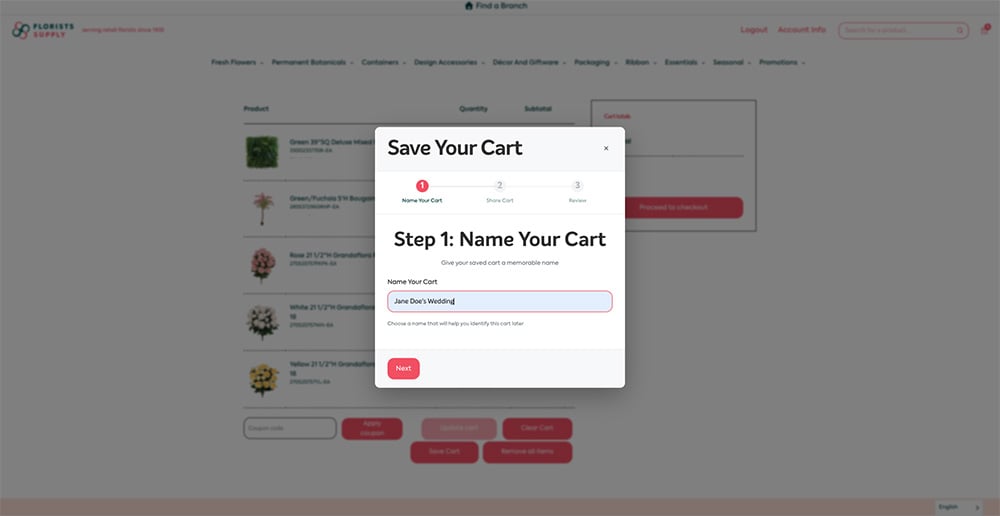
A pop-up window will appear. Enter a name for your cart to help you identify it later (for example, by project, season, or order type).
Click Next to continue.
Step 4: Choose Cart Visibility
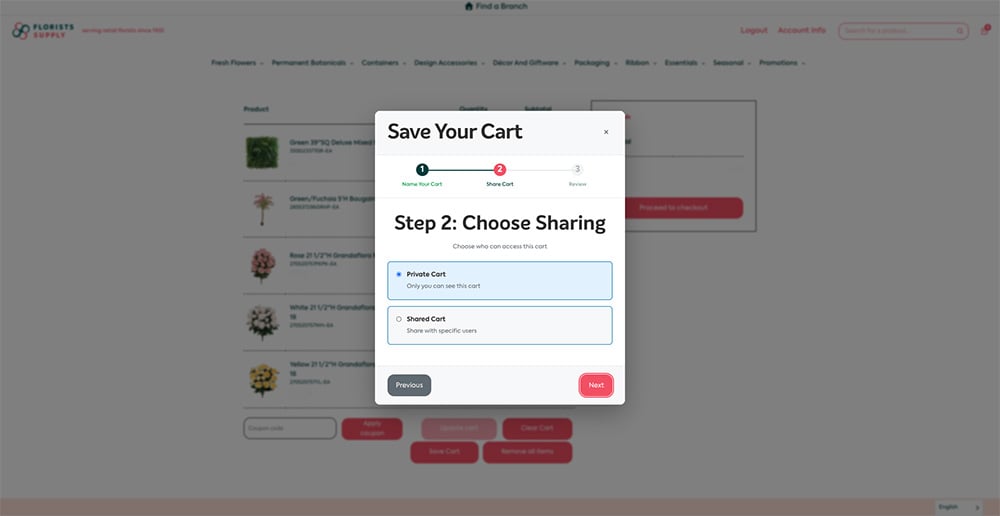
You will be prompted to select your cart setting. Choose Private to keep the cart for your own use.
Note: Shared carts should only be used if you have been approved to do so by your BDM.
After selecting Private, click Next to continue.
Step 5: Review and Save Your Cart
Review your cart details. If everything looks correct, click the “Save Cart” button to complete the process.
The system may take 10–20 seconds to save your cart. Please remain on the page until a confirmation message appears: “Cart saved successfully!”
Click OK to continue.
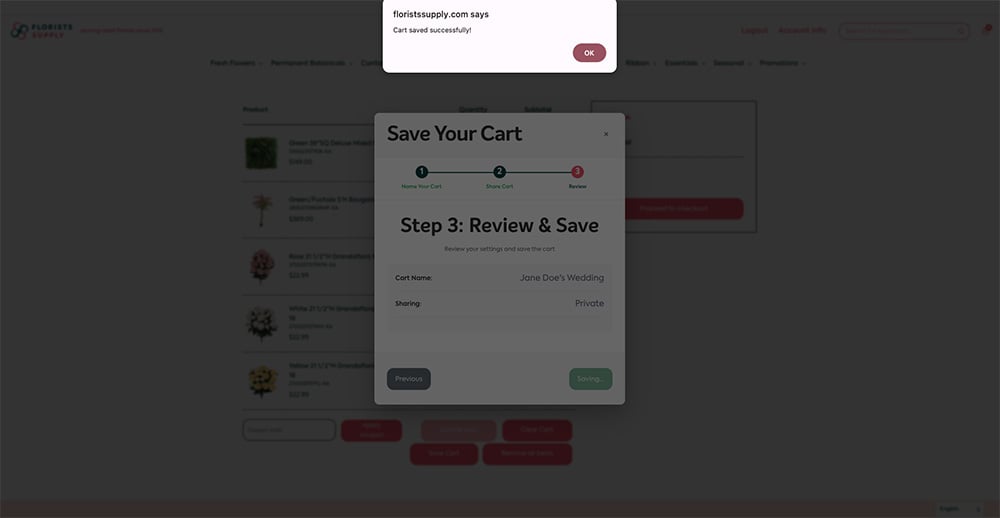
You have now successfully saved your cart. You can repeat these steps to create as many carts as you need.
How to Access and Use Your Saved Carts After Saving
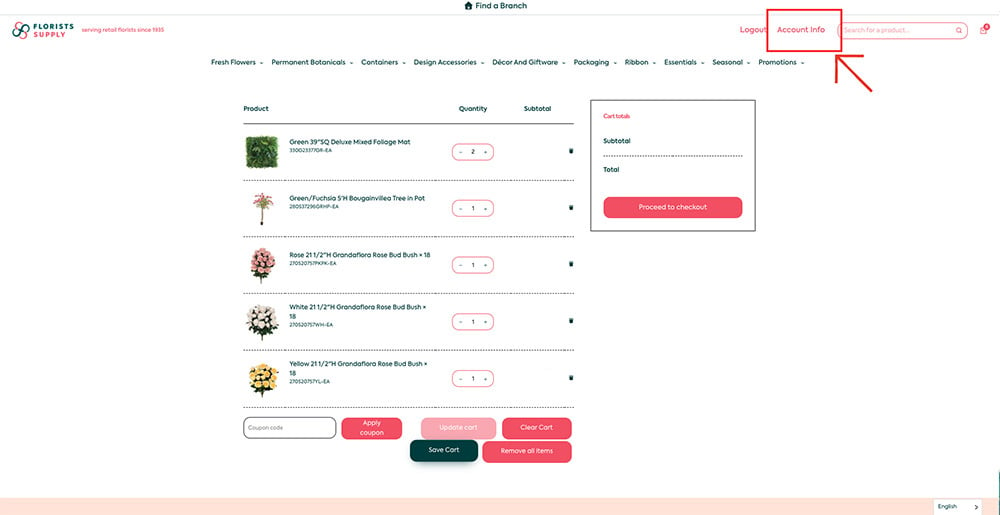
Click “Account Info” located next to the search bar in the top-right corner.
This will take you to the Account Portal.
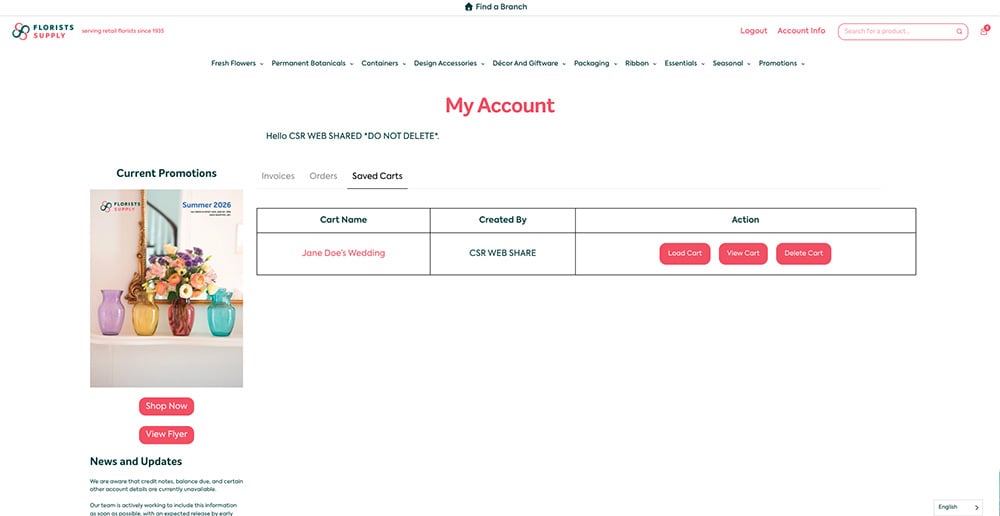
Navigate to the Saved Carts Tab to see all carts you’ve created.
Using Saved Carts
Load to Checkout: You can load a Saved Cart directly into checkout.
Note: this will replace any items currently in your cart.
Product Availability: If any products are sold out when you load a Saved Cart, they will be automatically removed. A banner message will appear stating: “One or more items were removed from your cart.”
Review Before Loading: Open a Saved Cart to add or remove products before sending it to checkout.
Create Multiple Carts: Repeat these steps to organize different orders as needed.
Why Use Saved Carts?
- Plan orders in advance
- Save time on repeat purchases
- Organize products by project, season, or customer
- Easily manage multiple shopping lists
If you have any questions, our team is here to help! Please contact us at [email protected].
Happy shopping!